


What is Shopify?
Shopify, founded in 2004, is a Canadian multinational company listed on the New York Stock Exchange and Toronto Stock Exchange. It is the largest online store system platform in the world which powers millions of businesses worldwide. According to Shopify, it made a total revenue of $2,929.5 million in 2020, with 457 million buyers. There were also 1.75 million merchants selling their products on Shopify.

Shopify is a commerce platform that allows everyone to set up an online store and sell their products. You may start your business and manage it here easily. Not only does Shopify allow store owners to sell their products online, but also lets them sell in multiple physical locations by using a point-of-sale app called Shopify POS, which is accompanying hardware.
If you have both online and physical stores, your inventory and stock will get synced and you can manage them through Shopify from the same account on any device as it is completely cloud-based and hosted. Shopify also allows you to manage all your business activities, including showcasing products, engaging with customers, getting paid, shipping a product, and overseeing your day-to-day finances and operations through one single platform.
The Shopify App Store and APIs are provided for store owners to customize their stores easily. Store owners and developers are allowed to upload programs to the Shopify platform to advance the additional functions of their online store. However, if you do not want to build your store from the ground, you can buy a Shopify store through Exchange.

Should you choose Shopify?
Shopify is suitable for people who:
Lack knowledge of web structure and design
Shopify is mainly designed for those people who are not familiar with technology to set up their online store. If you do not have any knowledge in technology or web structure and design, no worries! You can apply different plugins from the internet to create your own online store in Shopify. Also, its search engine optimization (SEO) is very powerful that can bring more traffic to your website and make it becomes more popular. You are able to start up your dream business easily through Shopify even you do not have any knowledge in technology or anyone to help you.
Prefer to build diversified payment channels
Apart from Shopify’s own payment service provider, you can also set up the third-party payment services provided, such as PayPal, Amazon Pay, and Apple Pay. The shop owners may also consider accepting other payment methods, such as cryptocurrencies.
Plan to expand your business to other markets
In recent years, Shopify has expanded its business to Asia and offered options for merchants to sell in multiple languages. This has attracted more users around the world, especially those in Asia. By using Shopify, you can promote your products to people over the world and expand your business to other markets.
Simple steps to set up your Shopify account!
Step 1: Start a 14-day free trial
Go to the Shopify website and start your 14-day free trial by entering your email address, setting up a password, and your Shopify URL (i.e., ‘yourstorename.myshopify.com’).
Decide your URL name carefully as it cannot be changed later. However, if you really want to change your URL name, you can buy a custom domain for it later. This domain will be the web address that your customers see. Note that you are not required to provide any credit card information to start your trial but Shopify will ask you a few questions.
Your brand new Shopify account will be created after you answered the questions!
Step 2: Add products and create product collections on your page
To add your products to the online store, you may go to “Products” > “All Products” > “Add Product in your Shopify dashboard”. The following information about the product will be needed:
- Product title
- Product description
- Product media (photos, GIFs, videos and 3D models of your product)
- Pricing
- Inventory
- Product shipping
- Product variants (e.g. different sizes, colors or flavors)
- Product organization (if needed)
You may use the search engine listing preview function to see how your product will be shown in a Google search result.
After adding a few products to your new Shopify store, you may also organize them into “collections” by the product nature. To create a collection, go to “Products” > “Collections” in your Shopify store.
Step 3: Create store pages and finish other settings
There are some key pages you should create, including:
- About us
- FAQs
- Policy pages
- Contact page
- A blog
These pages can be created by going to “Online Store” > “Pages” and click “Add page”, except the blog. You may fill in your page title, content, SEO info etc., in the blanks. Note that you have to set the “theme template” option to “contact”.
For blog posts, you may go to “Online Store” > “Blog Posts” and click “Create blog post”.
After that, there are a few things for you to do to completely set up your page:
- Create your navigation menus (“Online Store” > “Navigation” > click “Save menu” when you have done)
- Choose a theme from the Shopify theme shore
- Create your home page (“Online Store” > “Themes” and click the “Customize”)
- Apply your brand
- Add a logo to your Shopify store (“Online Store” > “Themes” > “Customize” and click the “Header” option)
- Customize typefaces and colors (“Online Store” > “Themes” > “Customize” and click the “Theme Settings” link)
- Set up your shipping rates (“Settings” > “Shipping and Delivery”)
- Set up your tax rates (“Settings” > “Taxes”)
- Choose a payment gateway for your store (“Settings” > “Payments”)
- Connect your domain (“Settings” > “Domains”)
Step 4: Prepare your store for the launch
Do a pre-launch check with the Shopify Checklist, and ensure that all the things have been set up. Once you finish, you can publish your store by removing your password to allow customers access. Go to “Online Store” > “Preferences” > “password protection” section. After that, your online store will be set up successfully and you can add more sales channels, enhance your store using apps or use online advertising to drive sales later.
CTA to product page (not yet finished): but rmb for this onelink to integration page.
How much does it cost to start a Shopify store?
Now you may probably be interested in the cost of starting a Shopify store. For new users, you can create a Shopify online shop for free and enjoy a 14-day free trial, without entering any credit card information. At the end of your trial, or when you decide to launch your store, you have to pick a plan and provide your payment details. There are three plans for you, including Basic Shopify, Shopify, and Advanced Shopify, and the cheapest one only costs USD 29 per month. All plans are charged on a monthly basis unless you sign up for an annual or biennial plan. The details of the plans are shown below:
| Basic Shopify | Shopify | Advanced Shopify | |
|---|---|---|---|
| Monthly Fee | USD 29 | USD 79 | USD 299 |
| Targets | new e-commerce businesses with occasional in-person sales | growing businesses selling online or in-store | scaling businesses that require advanced reporting |
Additional fees of Shopify payment
In addition to the monthly fee of the plan, other additional fees may be involved in the transaction as Shopify charges users in US dollars, including:
Credit card rates
If you want to receive payment by credit cards, such as Visa and Mastercard in your online store, you have to pay a small amount fee to Shopify. You do not need to pay any fees to the credit card payment service provider, and the credit card rate varies depending on the plan you selected.
Transaction fees
Transaction fees will be charged for each transaction that you collect payment from customers by third-party payment service providers, which includes Shopify’s integration with the external payment gateway. Same as the credit card rates, the transaction fee varies depending on the plan you choose. Basic Shopify, Shopify, and Advanced Shopify plan subscribers are charged additional fees of 2%, 1% and 0.5% respectively. However, the transaction fee can be exempted if you choose to use Shopify Payments.
If you are using other payment channels such as Paypal, a 2% transaction fee will be charged by Shopify, and Paypal will also charge you for each transaction. Paypal’s transaction fee for cross-border transactions is bill payment x 4.40% + fixed fee. Assuming that your overseas customer purchases products and makes payment through Paypal, the total fee you need to pay will be the product price x 2% + product price x 4.40% + fixed fee.
Shopify Payments
It is Shopify’s own payment service provider which can integrate with your checkout process directly. If your store is eligible for Shopify Payments, you may enjoy the benefits below:
- need to pay the credit card rate only and no extra fees;
- let your customers can enter payment information in the checkout process without leaving the online store;
- set up Shopify Payments in the Shopify management page directly without logging into other websites or accounts; and
- view payment details in Shopify management page instantly.
If you want to offer your customers other payment methods, such as via PayPal or a customized payment method, you can set up these items in addition to Shopify Payments and no other additional fees are required.
Shopify charges users transaction fees and other additional fees every 30 days. The most cost-effective and convenient way to operate your online shop in Shopify is to link your store with Shopify Payments.
See how these 3 successful UK Shopify stores do
Luxy Hair generates 7-figure annual revenue
Luxy Hair is one of the top Shopify dropshipping stores founded by Alex Ikonn and Mimi. Alex brought up the idea of starting a hair extension online e-commerce store when he knew that Mimi could not locate one online. They were confident with their idea and created their online store in Shopify, which was very easy for them to set up the business even they did not have much knowledge in technology. Also, Shopify also allows them to start their dream business with minimal upfront investment. Luxy Hair has leveraged a Shopify App called Shipware to relieve their product delivery burden. Until now, the store generates 7-figure revenue annually, making it one of the top Shopify stores worldwide.

GymShark made an annual revenue growth of 200%
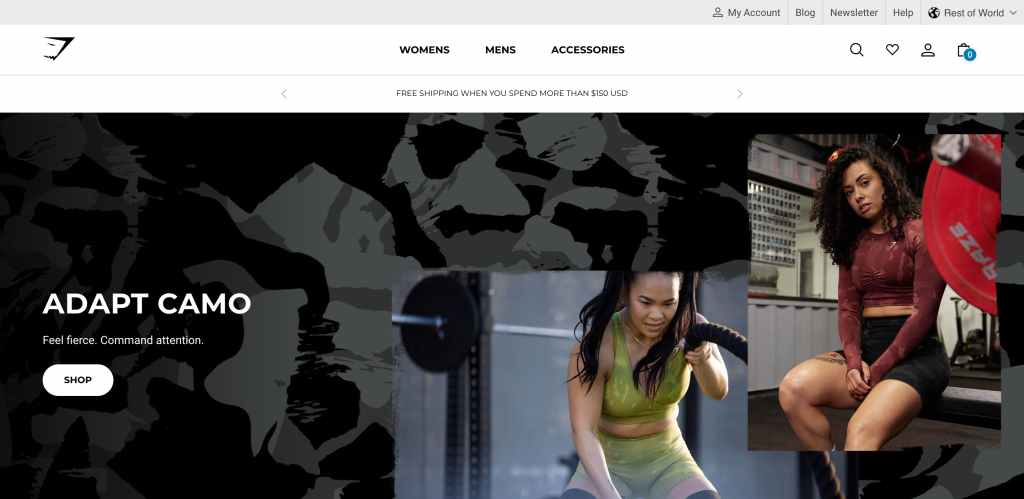
GymShark is a UK-based fitness business that was founded by Ban Francis in 2012. It offers fitness apparel and accessories to customers and now it has more than 3 million Instagram followers from over 130 countries. By using Shopify, GymShark is able to sell its products all over the world and keep growing the community to engage customers. In 2019, it made a massive turnover of USD 236 million, with annual revenue growth of almost 200% and now it is a recognized brand in the market.
A side hustle that has gained over USD 10 million
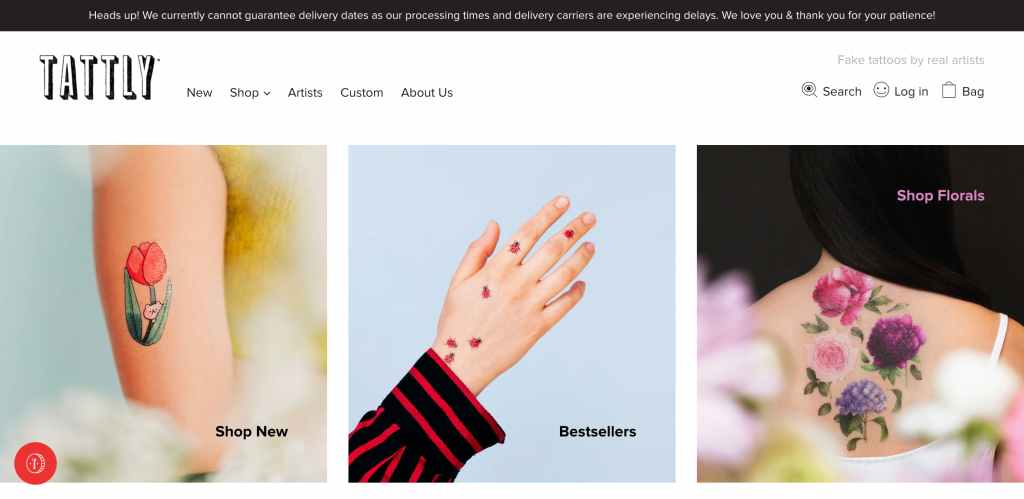
Tina Roth Eisenberg started Tattly, which sells temporary tattoos designed by different artists on Shopify, and she has made great revenue from it. This business idea came from a ludicrously temporary tattoo from Tina’s daughter, and Tattly was started on Shopify because it was a side hustle for Tina and Shopify did not require much investment. However, Tattly has made over USD 10 million now with more than 2.6 million products. Tina has also set up a pop-up store to expand her business and the cloud-based feature of Shopify allows her to manage the inventory of her online and physical stores easily.
Finally, the checklist for you ready to use
Here are some advice and checklist suggested by Shopify:
1. Before you start
- Get advice from local experts about taxes and laws that are related to your business
- Consider migrating your existing e-commerce website to Shopify if you have
- Choose the sales channels that you want to use
- Learn about Shopify’s point-of-sale hardware if you are interested in selling in person
- Think about which pricing plan you need
- Consider purchasing an existing Shopify business using Exchange Marketplace
2. Set up your online store
- Log in to your store
- Set up a password to protect your store
- Name your store and set your legal business name
- Enter your business address
- Add your billing information
- Set up your payment provider
- Set the default currency for your store
- Set a default weight unit for your store listings
- Set up your shipping settings
- Set up pickup and local delivery
- Set up your taxes
- Set up your payment gateways
- Staff your store if necessary
- Set up your domain
- Explore the Shopify App Store to see which apps could help you with your business
3. Organize your online store
- Make your website look great with a theme
- Customize your theme
- Add your products
- Organize your products into collections
- Customize your menu and navigation
- Add blog to your store
- Test your online store
- Test successful and failed transactions
- Test refunding and canceling orders
- Test fulfilling and partially fulfilling orders
- Test archiving successful orders
- Learn about Shopify’s fraud analysis settings
4. Open your online store
- Remove your online store password to give customers access to your store
5. Add other online sales channels
- Sell with Buy Buttons
- Sell on Facebook and Instagram with the Facebook sales channel
6. Promote your online store
- Define your home page metadata
- Promote your store
- Create a marketing plan
- Set up Shopify Email and send your first email marketing campaign
- Improve your store’s SEO
- Use discount codes and sales
- Customize your abandoned cart emails
- Read and respond to messages in Shopify Inbox


 Marketing Unplugged
Leave a reply to Klaviyo E-Mail Marketing Grows Brands – Charles Lange Cancel reply